Basically, you can let Video Converter iPhone App help you transfer video files from your computer hard drive and get them converted into iPhone compatible video file format (MOV or MP4) within the app directly. As its name indicates, Video Converter App mainly functions as a converter for your iPhone. As a matter of fact, you can also use Video Converter App as a Video Player App, with which you can play video files in virtually all popular formats (except DRM video) on your iPhone. And you do not need to download any other Video Player app for your iPhone any more.
Learn more: http://videoconverterapp.com/convert-video/video-player-iphone-app/
Thursday, May 16, 2013

Wednesday, May 8, 2013
Easily Grab Photos from Videos with Video to Photo Grabber for iPhone/iPad
Whether you filmed a great video clip and want to share the exciting moment with others, or you slided to video mode and forgot to switch back when you would like to take a photo and want to recover photos from those videos, you can let Video to Photo Grabber help you.
Video to Photo Grabber, developed by Shenzhen Socusoft Co., Ltd, is an iPhone/iPad app that directly loads videos from Camera Roll and parses videos frame by frame so that you can capture the one you like as still image. The photo will be saved at the same resolution as the source video. For iPhone 5, iPhone 4S, iPod touch 5, the new iPad, iPad mini, the still frame photo has a resolution of 1920×1080, just like a 200M pixels digital camera.
Features of Video to Photo Grabber
* With Video to Photo Grabber App, you can simply choose to take a video when you hesitate which to choose, as it can help you easily extract any static photos or images from the video.
* Video to Photo Grabber helps you take better pictures of fast moving objects (cars, sports, dance , exciting baby and so on).
* Video to Photo Grabber app helps you recover photos from the recorded videos.
* Browse the video frame by frame to get the best scenery and the exact moment you need.
* With Video to Photo Grabber App, you can prop your iPhone up, shoot a video of yourself and your family or friends. You can export any photo that suits you best afterwards.
* Edit the captured image before saving it, like cropping, adding text/stickers, rotating/flipping, and more.
* Export images to Camera Roll, email the photos, share via iTunes File Sharing, print them out, open in other apps, etc.
Availability
Video to Photo Grabber is only $1.99 USD (or equivalent amount in other currencies) and available worldwide exclusively through the App Store in the Photos & Videos category.
Video to Photo Grabber App is compatible with iPhone 3GS, iPhone 4, iPhone 4S, iPhone 5, iPod touch (4th generation), iPod touch (5th generation), iPad 2 Wi-Fi, iPad 2 Wi-Fi + 3G, iPad (3rd generation), iPad Wi-Fi + 4G, iPad (4th generation), iPad Wi-Fi + Cellular (4th generation), iPad mini and iPad mini Wi-Fi + Cellular and requires iOS 5.0 or later.
Video to Photo Grabber, developed by Shenzhen Socusoft Co., Ltd, is an iPhone/iPad app that directly loads videos from Camera Roll and parses videos frame by frame so that you can capture the one you like as still image. The photo will be saved at the same resolution as the source video. For iPhone 5, iPhone 4S, iPod touch 5, the new iPad, iPad mini, the still frame photo has a resolution of 1920×1080, just like a 200M pixels digital camera.
Features of Video to Photo Grabber
* With Video to Photo Grabber App, you can simply choose to take a video when you hesitate which to choose, as it can help you easily extract any static photos or images from the video.
* Video to Photo Grabber helps you take better pictures of fast moving objects (cars, sports, dance , exciting baby and so on).
* Video to Photo Grabber app helps you recover photos from the recorded videos.
* Browse the video frame by frame to get the best scenery and the exact moment you need.
* With Video to Photo Grabber App, you can prop your iPhone up, shoot a video of yourself and your family or friends. You can export any photo that suits you best afterwards.
* Edit the captured image before saving it, like cropping, adding text/stickers, rotating/flipping, and more.
* Export images to Camera Roll, email the photos, share via iTunes File Sharing, print them out, open in other apps, etc.
Availability
Video to Photo Grabber is only $1.99 USD (or equivalent amount in other currencies) and available worldwide exclusively through the App Store in the Photos & Videos category.
Video to Photo Grabber App is compatible with iPhone 3GS, iPhone 4, iPhone 4S, iPhone 5, iPod touch (4th generation), iPod touch (5th generation), iPad 2 Wi-Fi, iPad 2 Wi-Fi + 3G, iPad (3rd generation), iPad Wi-Fi + 4G, iPad (4th generation), iPad Wi-Fi + Cellular (4th generation), iPad mini and iPad mini Wi-Fi + Cellular and requires iOS 5.0 or later.
Thursday, May 2, 2013
How to Add Music to iPhone 5
In this post, I'd like to show how you can add YouTube videos to iMovie for editing. Obviously, you cannot get it done directly. You need to download the online videos from YouTube in the first place. Then, there’s the chance to import the downloaded video files into your iMovie project.
1. Download and install Free YouTube Downloader to your Mac.
Download Free YouTube Downloader for Mac (1.55M)

2. Add YouTube video URLs
Run Free YouTube Downloader. Visit YouTube website and go to the YouTube video page you'd like to download to your Mac. Copy the video link from the address bar of your browser.
Paste the link to the Video Link: box and click the +Add button, then it will be added to the manager panel at the top of the interface. To add more videos, just copy and paste the link to the the box and click the +Add button again. Then there will be a list of URL of Videos showing in the manager panel.
3. Choose output format and output directory
There are three output formats for you to choose from: MP4, FLV or 3GP. Since you are going to add the downloaded videos to iMovie, you need to choose MP4 as the output format.
Note: Video formats accepted by iMovie include MPEG-2 and AVCHD, DV-Standard and HDV (High Definition Video), QuickTime Movie, MEPG-4.
Click the ... button to locate to the folder you want to output the downloaded YouTube videos to.
4. Start to download
Click the Download button to start to download and convert YouTube videos.

That's it! Now the downloaded YouTube videos will be added to your iMovie project. You can feel free to edit and enhance them.
Source from http://videoconverterapp.com/convert-video/add-music-to-iphone5/
How to Download Videos from YouTube?
To download videos from YouTube onto Mac, the only tool you need is Free YouTube Downloader.1. Download and install Free YouTube Downloader to your Mac.
Download Free YouTube Downloader for Mac (1.55M)
2. Add YouTube video URLs
Run Free YouTube Downloader. Visit YouTube website and go to the YouTube video page you'd like to download to your Mac. Copy the video link from the address bar of your browser.
Paste the link to the Video Link: box and click the +Add button, then it will be added to the manager panel at the top of the interface. To add more videos, just copy and paste the link to the the box and click the +Add button again. Then there will be a list of URL of Videos showing in the manager panel.
3. Choose output format and output directory
There are three output formats for you to choose from: MP4, FLV or 3GP. Since you are going to add the downloaded videos to iMovie, you need to choose MP4 as the output format.
Note: Video formats accepted by iMovie include MPEG-2 and AVCHD, DV-Standard and HDV (High Definition Video), QuickTime Movie, MEPG-4.
Click the ... button to locate to the folder you want to output the downloaded YouTube videos to.
4. Start to download
Click the Download button to start to download and convert YouTube videos.
Import Videos into iMovie
Launch iMovie, go to File > Import > Movies... Select the converted MP4 video then click Import.That's it! Now the downloaded YouTube videos will be added to your iMovie project. You can feel free to edit and enhance them.
Source from http://videoconverterapp.com/convert-video/add-music-to-iphone5/
Tuesday, April 16, 2013
Convert Video to Play on iPad mini
If the video files are incompatible with iPad mini, you cannot transfer them to the device using either of the above methods. Rather, you need to get them converted first. There are numerous video converters on the Internet that claim to be able to convert video files for playing on iPad mini. You can easily find one. When you get the iPad mini supported video files, you still need to transfer them to your device with or without iTunes.
A simple solution is download and install Video Converter App onto your iPad mini. This app lets you transfer movie files (both supported and unsupported) from your computer via Wi-Fi Upload or iTunes File Sharing. Then you can choose to convert them on the device directly. With hardware accelerate encoding engine, the conversion speed is acceptable. The converted video files are in iPad mini-compatible format. You can choose to play them on iPad mini, copy them to Photo Library, transfer them back to PC via Wi-Fi Transfer, and even open in other apps. If you have iMovie app installed onto your iPad mini, the good news is that you can open the converted movie files in iMovie for further editing and enhancing.
Learn more http://www.iosvideoconverter.com/ipad-mini-video-converter.html
A simple solution is download and install Video Converter App onto your iPad mini. This app lets you transfer movie files (both supported and unsupported) from your computer via Wi-Fi Upload or iTunes File Sharing. Then you can choose to convert them on the device directly. With hardware accelerate encoding engine, the conversion speed is acceptable. The converted video files are in iPad mini-compatible format. You can choose to play them on iPad mini, copy them to Photo Library, transfer them back to PC via Wi-Fi Transfer, and even open in other apps. If you have iMovie app installed onto your iPad mini, the good news is that you can open the converted movie files in iMovie for further editing and enhancing.
Learn more http://www.iosvideoconverter.com/ipad-mini-video-converter.html
Tuesday, April 9, 2013
Saturday, April 6, 2013
Video Converter iPhone/iPad App

iOS Video Converter works as:
iPhone Video Converter
Still use desktop video converters to convert video files for playing on your iPhone? With the popularity of mobile technology, it's time to do that right on your mobile devices. For iPhone users, Video Converter App is the perfect solution. This iPhone Video Converter App enables you to import video files from your computer as well as download video files stored onto Dropbox and SkyDrive to convert directly. It is an ideal video converter application for iPhone 3GS, iPhone 4, iPhone 4S and iPhone 5.
iPad Video Converter
Compared with iPhone, iPad is a better portable device for watching movies, videos and TV shows due to its bigger screen. With Video Converter App, you can easily move your video files from PC to iPad as well so as to enjoy them anytime anywhere. And if you an iMovie addict, you can also use this iPad Video Converter App to help you convert video files for editing in the iMovie app on your iPad. Video Converter App works with all iPad models including iPad, iPad 2, iPad 3 (the New iPad), iPad 4 and iPad mini.
HD Video Converter App
Did you shoot a host of movie clips with your HD camcorder and now you want to play some of them on your iPhone/iPad? This can be easily done using Video Converter App. The HD Video Converter App accepts video files recorded with HD camcorders like Sony, Nikon and Panasonic and supports a variety of digital camera formats including AVCHD MTS/M2TS, MPEG-4/H.264, AVI, etc.
Video Compressor App
The latest Apple devices like iPhone 5, iPhone 4S, iPod touch 5, iPad mini, iPad 4 and iPad 3 capture video at up to 1080p. If you take videos regularly, videos in the camera roll will eat up your device storage soon. Video Converter App can also be used to compress video resolution from 1080p to 720p or less. The iOS Video Compressor App helps you save device space dramatically while keeping high video quality.
Wednesday, March 13, 2013
Clone2Go DVD to iPad Converter 20 Licenses Giveaway
Clone2Go DVD to iPad Converter lets you convert DVD to iPad video/audio on Windows and Mac with ease and speed. It can also be used to convert video files (AVI, FLV, MKV, WMV, 3GP, MPG, MTS, M2TS, VOB, etc.) to iPad compatible video/audio files. Besides, it features a YouTube Downloader which enables you to download videos from YouTube easily.

20 licenses of Clone2Go DVD to iPad Converter to be given away on March 2013.
Here is the giveaway page
http://videoconverterapp.com/convert-video/giveaway-clone2go-dvd-ipad-converter/
20 licenses of Clone2Go DVD to iPad Converter to be given away on March 2013.
Here is the giveaway page
http://videoconverterapp.com/convert-video/giveaway-clone2go-dvd-ipad-converter/
Wednesday, January 16, 2013
iPhone Video Converter 10 Licenses Giveaway
Video Converter App is giving away 10 licenses of iPhone Video Converter before Jan 22, 2013. The original price is $24.95. Now you have a chance to get if for free. Here is the giveaway link:
http://videoconverterapp.com/convert-video/free-iphone-video-converter/
The rule is very easy. You just like Video Converter App on Facebook, leave a comment with your Facebook profile name below the post, and wait to be one of the 10 lucky winners.

http://videoconverterapp.com/convert-video/free-iphone-video-converter/
The rule is very easy. You just like Video Converter App on Facebook, leave a comment with your Facebook profile name below the post, and wait to be one of the 10 lucky winners.
Sunday, November 25, 2012
How to Convert Video Files on iOS
Generally, if we want to watch local video files on an iOS device, we need to make sure they are iTunes-, iPhone-, iPad-, or iPod-compatible first. For the video files that can be accepted by iPhone/iPod touch/iPad, we just connect the device with computer via cable and the open iTunes to sync them to the device. However, for the non-compatible video files, we need to convert them first. A great majority of video converters provide optimized profile presets for Apple devices, so we don't need to know about what formats we should convert the video files into. But if you do want to know, you can check out the Tech Specs page of the device in the Apple official page.
There are numerous video converter software tools that lets you convert video files on Windows or Mac computers. What if you want to convert video files on your iOS devices, like iPad, iPhone or iPod touch? Is there a video converter for iOS? If I want to play the video files stored in my PC on my iPad/iPhone/iPod touch, do I have to use iTunes to sync?
With Video Converter App, you will never need to convert video files on a Windows PC or Mac again so as to play them on iPhone/iPad/iPod touch. Besides, you will skip the iTunes sync process forever. This iOS app lets you easily transfer video files from your computer to your iPad/iPhone/iPod touch for instant conversion and direct playback. It supports a variety of video file formats including AVI, MP4, MPG, WMV, FLV, 3GP, RM, RMVB, TS, MTS, M2TS, MKV, etc. You only need 2 steps to get any video files in your computer to immediately play on your iPhone/iPad/iPod touch.
https://itunes.apple.com/us/app/video-converter-app/id549355396

Run Video Converter App and switch to the WiFi Upload tab.
Open a web browser on your computer.
Type the URL address as shown in the Wi-Fi Upload screen into the address bar.
There will be a Upload button in interface of the browser.
Choose and upload your local video files to your device.
Press the Convert Now! button to start converting video files into iTunes-, iPhone-, iPad-, iPod-compatible video.

The converted video files will be added to the Converted Video tab.
When the video files are converted, you can then choose to play them or save them to Photo Library.
Done.
Note: Apart from WiFi Upload, Video Converter App also lets you transfer video files via iTunes File Sharing. It is helpful if the file size is very big or if there's no network connection available.
There are numerous video converter software tools that lets you convert video files on Windows or Mac computers. What if you want to convert video files on your iOS devices, like iPad, iPhone or iPod touch? Is there a video converter for iOS? If I want to play the video files stored in my PC on my iPad/iPhone/iPod touch, do I have to use iTunes to sync?
With Video Converter App, you will never need to convert video files on a Windows PC or Mac again so as to play them on iPhone/iPad/iPod touch. Besides, you will skip the iTunes sync process forever. This iOS app lets you easily transfer video files from your computer to your iPad/iPhone/iPod touch for instant conversion and direct playback. It supports a variety of video file formats including AVI, MP4, MPG, WMV, FLV, 3GP, RM, RMVB, TS, MTS, M2TS, MKV, etc. You only need 2 steps to get any video files in your computer to immediately play on your iPhone/iPad/iPod touch.
1. Upload video files via WiFi
Download and install Video Converter App on your iPhone/iPad/iPod touchhttps://itunes.apple.com/us/app/video-converter-app/id549355396
Run Video Converter App and switch to the WiFi Upload tab.
Open a web browser on your computer.
Type the URL address as shown in the Wi-Fi Upload screen into the address bar.
There will be a Upload button in interface of the browser.
Choose and upload your local video files to your device.
2. Convert video files
When the video files are uploaded to Video Converter App, they will go to the Video Source tab.Press the Convert Now! button to start converting video files into iTunes-, iPhone-, iPad-, iPod-compatible video.
The converted video files will be added to the Converted Video tab.
When the video files are converted, you can then choose to play them or save them to Photo Library.
Done.
Note: Apart from WiFi Upload, Video Converter App also lets you transfer video files via iTunes File Sharing. It is helpful if the file size is very big or if there's no network connection available.
Wednesday, November 21, 2012
Video Converter iOS App Transfers Video Files to iPhone/iPad/iPod Touch for Conversion and Playback
The iTunes Store offers a variety of movies, music videos and TV shows which you can purchase, download and transfer to your iPhone/iPad/iPod touch devices for playback. If there are some great video files in your PC and you want to play them on your iPhone/iPad/iPod touch, you have probably noticed that not all of them can be transferred to your device. What's the reason behind? It is due that Apple devices like iPhone, iPad and iPod touch can only support certain .m4v, .mp4, and .mov file formats. For the video formats like AVI, WMV, MKV, FLV, 3GP, MTS, M2TS, RM, RMVB, etc., you cannot directly transfer them to iPhone, iPad and iPod touch devices for viewing.
Anyway, there's indirect way to watch the non-compatible video files on an iOS device. You just need a converter to get them converted to iTunes-, iPad-, iPhone-, or iPod-compatible videos. When you get the converted videos, you just add them to iTunes and sync them to your device. It sounds nice. But don't you think it very troublesome? Besides, the converter will cost you dollars.
So is there a more convenient yet free way to convert local video files for playing on iPhone/iPad/iPod touch? The answer is YES and the solution is Video Converter App.
Video Converter App lets you transfer video files from your computer to your iPhone/iPad/iPod touch device for instant conversion and direct playback. You can choose to transfer video files to your device either by WiFi Upload or via iTunes File Sharing, in queue ready to be converted to iPad/iPhone/iPod compatible video files.

Main features of Video Converter App
Availability
Video Converter App is only $1.99 USD (or equivalent amount in other currencies) and available worldwide exclusively through the App Store in the Entertainment category.
https://itunes.apple.com/us/app/video-converter-app/id549355396
Video Converter App is compatible with iOS 4.3 or above and works with iPhone 5, iPhone 4S, iPhone 4, iPhone 3GS, iPad 4, The New iPad, iPad 2, iPad 1, iPad mini, iPod touch 5 and iPod touch 4.
Anyway, there's indirect way to watch the non-compatible video files on an iOS device. You just need a converter to get them converted to iTunes-, iPad-, iPhone-, or iPod-compatible videos. When you get the converted videos, you just add them to iTunes and sync them to your device. It sounds nice. But don't you think it very troublesome? Besides, the converter will cost you dollars.
So is there a more convenient yet free way to convert local video files for playing on iPhone/iPad/iPod touch? The answer is YES and the solution is Video Converter App.
Video Converter App lets you transfer video files from your computer to your iPhone/iPad/iPod touch device for instant conversion and direct playback. You can choose to transfer video files to your device either by WiFi Upload or via iTunes File Sharing, in queue ready to be converted to iPad/iPhone/iPod compatible video files.
Main features of Video Converter App
- Support most video formats.
- Support video files captured with HD camcorders such as Sony, Nikon and Panasonic.
- Support all brand digital cameras' video format.
- Transferring video to iPad, iPhone or iPod touch via wifi with web interface.
- Support iTunes File Sharing for large files.
- Speedy converting with hardware accelerate encoding engine.
- Intuitive interface and very easy to use.
Availability
Video Converter App is only $1.99 USD (or equivalent amount in other currencies) and available worldwide exclusively through the App Store in the Entertainment category.
https://itunes.apple.com/us/app/video-converter-app/id549355396
Video Converter App is compatible with iOS 4.3 or above and works with iPhone 5, iPhone 4S, iPhone 4, iPhone 3GS, iPad 4, The New iPad, iPad 2, iPad 1, iPad mini, iPod touch 5 and iPod touch 4.
Monday, October 29, 2012
How to Convert and Transfer DVD to iPad mini on Mac
 The iPad mini does not have a disc drive, so you cannot insert a DVD movie disc into the device for direct playback. Apple prefers consumers download movies and related entertainment content from its proprietary iTunes Store. If you have some DVD movie discs at hand and do want to watch them on your iPad mini, there is no reason to pay for them in iTunes Store for a second time. The DVD to iPad Converter for Mac allows you to rip DVD movies to multiple iPad mini friendly formats, including MP4, M4V and MOV, on Mac OS X (including Mac OS X 10.8 Mountain Lion).
The following step by step tutorial is going to show you how to convert DVD to iPad mini video using DVD to iPad Converter for Mac.
1. Import DVD Movie
Download the latest version of DVD to iPad Converter for Mac.
Download Link
Run DVD to iPad Converter. Press the DVD icon to load the DVD movie you are going to watch on your iPad mini. After the movie is imported, there is a list showing each DVD chapter/title. From the table, you can know about the Name, Duration, Video Size, etc about the DVD movie.

Note: Check out the longest DVD chapter/title, which is usually the main content of the DVD movie.
2. Choose Output Format
Extend the Profile drop-down list and choose Apple iPad from the category. From the subcategory, choose iPad H.264 Video or iPad H.264 HD Video according to your needs.

3. Start to Convert DVD to iPad mini on Mac
After making all necessary settings, press the Start button to start to convert DVD to iPad mini on Mac.
4. Transfer Output Video to iPad mini
When the conversion is complete, connect your iPad mini to your Mac via USB cable and open iTunes. Then you can transfer the converted video to your iPad mini through the sync of iTunes.
P.S.
Video Formats Supported by iPad mini
H.264 video up to 1080p, 30 frames per second, High Profile level 4.1 with AAC-LC audio up to 160 Kbps, 48kHz, stereo audio in .m4v, .mp4, and .mov file formats; MPEG-4 video up to 2.5 Mbps, 640 by 480 pixels, 30 frames per second, Simple Profile with AAC-LC audio up to 160 Kbps per channel, 48kHz, stereo audio in .m4v, .mp4, and .mov file formats; Motion JPEG (M-JPEG) up to 35 Mbps, 1280 by 720 pixels, 30 frames per second, audio in ulaw, PCM stereo audio in .avi file format
Audio Formats Supported by iPad mini
AAC (8 to 320 Kbps), Protected AAC (from iTunes Store), HE-AAC, MP3 (8 to 320 Kbps), MP3 VBR, Audible (formats 2, 3, 4, Audible Enhanced Audio, AAX, and AAX+), Apple Lossless, AIFF, and WAV
Source from http://www.clone2go.com/ipad-mini/convert-dvd-to-ipad-mini-on-mac.php
Monday, September 10, 2012
Clone2Go DVD Ripper for Windows 10 Licenses Giveaway
Like Clone2Go on Facebook to win a copy of Clone2Go DVD Ripper for Windows.
Here is the giveaway link: http://www.facebook.com/clone2go/app_10442206389

Here is the giveaway link: http://www.facebook.com/clone2go/app_10442206389
Wednesday, August 22, 2012
How to Burn iPhone Videos to DVD in Windows 7
Did you record several great videos on your iPhone and now you want to make a DVD of the videos to keep them forever? You may be looking for a way to burn iPhone videos to DVD. Actually, this can be accomplished but the process is not easy if you don't want to pay dollors. To burn iPhone videos to a DVD disc on Windows 7, you will need to:
What you will need:
Using this 3-step method to burn iPhone videos to DVD seems to be very troublesome and does cost $1.99. However, compared with the way of using a $40-50 DVD burning tool, it is well worth a try. By the way, you will find the transfer app very helpful if you need to transfer photos and videos betwen iPhone and computer and even from one iDevice to another from time to time.
Now let's take a look at the whole steps:
1. Transfer videos from iPhone to PC using Wireless Transfer App
1) Download and install Wireless Transfer App to your iPhone
The iTunes Preview Link
2) Make sure your iPhone and your Windows PC are connected to the same Wi-Fi network.
3) Run Wireless Transfer App on your iPhone.

4) Find the http address at the bottom of the screen.
5) Open a web browser in your Windows PC and type the address exactly as that appears on your iPhone (including the colon and the following port number).
6) The browser will list all the photos and videos in your iPhone.
7) Select and download the videos you want to burn to DVD.
2. Convert iPhone video using Clone2Go Free Video Converter
The iPhone videos transferred to your Windows PC are in .mov format and thus cannot be directly imported into Windows DVD Maker project. You will need to convert the videos from mov to avi, mpg, wmv or other Windows formats. Clone2Go Free Video Converter is an excellent tool to do this.

1) Click the "Add Video" button to import your iPhone videos.
2) From the "Profile" drop-down list, choose "Customized AVI Movie (*.avi)" as the output format.
Note: You need to set the "video codec" to "msmpeg4v2" in order to get the converted avi files successfully imported into Windows DVD Maker.

3) Click the "Start Encode" button to start to convert iPhone video to AVI.
3. Burn iPhone videos to DVD in Windows DVD Maker
After your iPhone video files are converted into AVI video, you can launch Windows DVD Maker and import the avi files into Windows DVD Maker for burning to DVD.

Done.
- Transfer videos from iPhone to Windows PC
- Convert iPhone video (.mov)
- Burn iPhone video to DVD in Windows DVD Maker
What you will need:
- Wireless Transfer App for iPhone ($1.99)
- Clone2Go Video Converter (free)
- Windows DVD Maker (Windows 7 built-in application)
Using this 3-step method to burn iPhone videos to DVD seems to be very troublesome and does cost $1.99. However, compared with the way of using a $40-50 DVD burning tool, it is well worth a try. By the way, you will find the transfer app very helpful if you need to transfer photos and videos betwen iPhone and computer and even from one iDevice to another from time to time.
Now let's take a look at the whole steps:
1. Transfer videos from iPhone to PC using Wireless Transfer App
1) Download and install Wireless Transfer App to your iPhone
The iTunes Preview Link
2) Make sure your iPhone and your Windows PC are connected to the same Wi-Fi network.
3) Run Wireless Transfer App on your iPhone.
4) Find the http address at the bottom of the screen.
5) Open a web browser in your Windows PC and type the address exactly as that appears on your iPhone (including the colon and the following port number).
6) The browser will list all the photos and videos in your iPhone.
7) Select and download the videos you want to burn to DVD.
2. Convert iPhone video using Clone2Go Free Video Converter
The iPhone videos transferred to your Windows PC are in .mov format and thus cannot be directly imported into Windows DVD Maker project. You will need to convert the videos from mov to avi, mpg, wmv or other Windows formats. Clone2Go Free Video Converter is an excellent tool to do this.
1) Click the "Add Video" button to import your iPhone videos.
2) From the "Profile" drop-down list, choose "Customized AVI Movie (*.avi)" as the output format.
Note: You need to set the "video codec" to "msmpeg4v2" in order to get the converted avi files successfully imported into Windows DVD Maker.
3) Click the "Start Encode" button to start to convert iPhone video to AVI.
3. Burn iPhone videos to DVD in Windows DVD Maker
After your iPhone video files are converted into AVI video, you can launch Windows DVD Maker and import the avi files into Windows DVD Maker for burning to DVD.
Done.
Monday, July 23, 2012
5 Different Ways to Play WMV on Mac
Windows Media Video (WMV) is a video compression format for several proprietary codecs developed by Microsoft. WMV files typically are played in Windows Media Player which cannot be installed on Mac. There is no need to worry about this problem. Plenty of solutions are available to play WMV videos on Mac and you can go ahead. Here are five different ways to play WMV videos on Mac. Of course, it is essential to download a third-party program to do the job.
1. MPlayerX

The interface of MPlayerX is a little similar to Quick Time interface but that’s about where the similarities end. MPlayerX can play any videos imported into it with flying colors. WMV is without exception. Since it supports so many popular (mkv, divx, etc) and obscure formats, MPlayer is said tobe one of the best free video players for the Mac machine.
2. VLC

VLC can play virtually any video format available. It's cross-platform compatible, quick and free. VLC also works fine with obscure audio formats, and if you would like to stream a video from one computer to another you can easily do that. If you want the video codec support of MPlayerX but with even more features aimed at advanced users, VLC is a good choice.
3. Windows Media Player9 for Mac
Windows Media Player 9 for Mac can play both local and streamed WMV and WMA files. It's free of charge. But there is no plan to be upgraded any more.
In general, this player can meet your needs to play WMV files on Mac. However, the discontinue upgrade decision has caused some trouble for Mac users. This player supports Apple Mac OS X version 10.5 or later. When it was released in 2003, some Snow Leopard OS users find it is really a headache to unzip the player 9 download or to get this player to work normally. So if your system does not support this player, turn to other solutions.
4. Clone2Go Video Converter
This method is involving in video conversion. Then you can play the converted video on your Mac apps. Clone2Go Video Converter can convert WMV to almost all popular video formats, such MOV, MP4, AVI, FLV, etc.

Step 1. Install and launch Clone2Go Video Converter. Then add or drag the WMV files to the converter.
Step 2. Set the output format. You can reset the "Start Time" and "Stop Time" by yourself.
Step 3. Click the "Start" button to begin the video conversion.
Finally, you can play the converted video on your Mac players, such as iTunes, QuickTime, etc.
5. Flip4Mac Components
The last but not least one is Flip4Mac, which is a set of video components installed into OS X which helps QuickTime play WMV files directly. It's a perfectly reasonable solution, but it can only support WMV and WMA files. So it is not so useful as VLC or MPlayerX.
You can choose an appropriate solution to play WMV videos on Mac. If you have installed some players on Mac, and you don't want to download any other players, or you usually do some video conversion, you'd better choose the fourth solution. If you would like to download a WMV video player, you can choose the MplayerX or VLC which are more useful in the long term.
Source from www.clone2go.com
1. MPlayerX
The interface of MPlayerX is a little similar to Quick Time interface but that’s about where the similarities end. MPlayerX can play any videos imported into it with flying colors. WMV is without exception. Since it supports so many popular (mkv, divx, etc) and obscure formats, MPlayer is said tobe one of the best free video players for the Mac machine.
2. VLC
VLC can play virtually any video format available. It's cross-platform compatible, quick and free. VLC also works fine with obscure audio formats, and if you would like to stream a video from one computer to another you can easily do that. If you want the video codec support of MPlayerX but with even more features aimed at advanced users, VLC is a good choice.
3. Windows Media Player9 for Mac
Windows Media Player 9 for Mac can play both local and streamed WMV and WMA files. It's free of charge. But there is no plan to be upgraded any more.
In general, this player can meet your needs to play WMV files on Mac. However, the discontinue upgrade decision has caused some trouble for Mac users. This player supports Apple Mac OS X version 10.5 or later. When it was released in 2003, some Snow Leopard OS users find it is really a headache to unzip the player 9 download or to get this player to work normally. So if your system does not support this player, turn to other solutions.
4. Clone2Go Video Converter
This method is involving in video conversion. Then you can play the converted video on your Mac apps. Clone2Go Video Converter can convert WMV to almost all popular video formats, such MOV, MP4, AVI, FLV, etc.
Step 1. Install and launch Clone2Go Video Converter. Then add or drag the WMV files to the converter.
Step 2. Set the output format. You can reset the "Start Time" and "Stop Time" by yourself.
Step 3. Click the "Start" button to begin the video conversion.
Finally, you can play the converted video on your Mac players, such as iTunes, QuickTime, etc.
5. Flip4Mac Components
The last but not least one is Flip4Mac, which is a set of video components installed into OS X which helps QuickTime play WMV files directly. It's a perfectly reasonable solution, but it can only support WMV and WMA files. So it is not so useful as VLC or MPlayerX.
You can choose an appropriate solution to play WMV videos on Mac. If you have installed some players on Mac, and you don't want to download any other players, or you usually do some video conversion, you'd better choose the fourth solution. If you would like to download a WMV video player, you can choose the MplayerX or VLC which are more useful in the long term.
Source from www.clone2go.com
Wednesday, July 18, 2012
Download YouTube Videos to iTunes with Clone2Go Free YouTube Downloader for Mac
If you are fond of watching music videos on YouTube, you will certainly feel very annoyed and frustrated by the embedded ads at the beginning of the videos. Meanwhile, if there's not very high network connection, the video will be buffering from time to time and the watching experience will be quite terrible.
So if you are really crazy about a singer and want to enjoy all his/her music videos on YouTube, why not download them all? No need to pay for the CDs. No need to tolerate the annoying ads.
How to do that? It will be very easy and fast if you have the handy Clone2Go YouTube Downloader app installed to your Mac. This app is totally free of charge. It lets you download any YouTube videos as MP4/3GP/FLV files and save them to your Mac HDD.

After you have all the music videos downloaded to your Mac, you will have full control over them. I used this tool to download 22 videos (about 5 minutes each) from YouTube and chose MP4 as the output format. I also ticked the "HD MP4 if it is availble" option. After choosing all of them for downloading, I went out for lunch. When I came back in about 30 minutes, I found that all the videos had been fully downloaded. I was very happy as I would be able to enjoy them later in the afternoon.
I also tried importing the downloaded videos into iTunes library. To my excitement, all of them were added to the "Movies" section in the library. I then felt no hesitation to connect my iPad with my Mac laptop and synced the videos to the iPad. Within a few minutes, I could watch all the videos on my iPad. So great!
When I shared this method with my colleagues, they also liked Clone2Go YouTube Downloader app very much. And I'd like to give 5-star award to this great app.
So if you are really crazy about a singer and want to enjoy all his/her music videos on YouTube, why not download them all? No need to pay for the CDs. No need to tolerate the annoying ads.
How to do that? It will be very easy and fast if you have the handy Clone2Go YouTube Downloader app installed to your Mac. This app is totally free of charge. It lets you download any YouTube videos as MP4/3GP/FLV files and save them to your Mac HDD.
After you have all the music videos downloaded to your Mac, you will have full control over them. I used this tool to download 22 videos (about 5 minutes each) from YouTube and chose MP4 as the output format. I also ticked the "HD MP4 if it is availble" option. After choosing all of them for downloading, I went out for lunch. When I came back in about 30 minutes, I found that all the videos had been fully downloaded. I was very happy as I would be able to enjoy them later in the afternoon.
I also tried importing the downloaded videos into iTunes library. To my excitement, all of them were added to the "Movies" section in the library. I then felt no hesitation to connect my iPad with my Mac laptop and synced the videos to the iPad. Within a few minutes, I could watch all the videos on my iPad. So great!
When I shared this method with my colleagues, they also liked Clone2Go YouTube Downloader app very much. And I'd like to give 5-star award to this great app.
Sunday, July 8, 2012
[Giveaway] Clone2Go DVD to iPad Converter 20 Copies
Clone2Go DVD to iPad Converter 20 Licenses Giveaway
We have good news for you once again!

Click the "Like" button above to become Clone2Go fans on Facebook, and you will have a chance to win a copy of Clone2Go DVD to iPad Converter that is worth $29.95.
How to Win a Free License?
1. Click the "Like" button on http://www.facebook.com/clone2go/app_10442206389 to unlock first.
2. Leave a comment below.
The 20 lucky winners will be chosen by Random.org and announced on July 25, 2012. The license codes will be sent to the winners via Facebook message or email (if provided).
Since Clone2Go DVD to iPad Converter is available on both Windows and Mac OS, it is recommended specifying your computer OS in your comment.
We have good news for you once again!
Click the "Like" button above to become Clone2Go fans on Facebook, and you will have a chance to win a copy of Clone2Go DVD to iPad Converter that is worth $29.95.
How to Win a Free License?
1. Click the "Like" button on http://www.facebook.com/clone2go/app_10442206389 to unlock first.
2. Leave a comment below.
The 20 lucky winners will be chosen by Random.org and announced on July 25, 2012. The license codes will be sent to the winners via Facebook message or email (if provided).
Since Clone2Go DVD to iPad Converter is available on both Windows and Mac OS, it is recommended specifying your computer OS in your comment.
Tuesday, June 19, 2012
How to Watch DVD's on the iPad
If you have an extensive collection of DVD's lying around, you might be wondering how you can watch them all on your iPad or iPhone. There's nothing quite like watching a movie whilst travelling or when away from home, and the experience can be even better than playing a physical DVD because movies start instantly on iOS. The iPad is an especially good video playback device due to the large screen size and hi-resolution display. HD (1080p or 720p) movies play brilliantly, and it's possible to transfer quite a number of films to the iPad – depending upon the storage capacity you have available.
This article describes the basics of how to watch movies on your iPad.
Introduction
The general process of getting a movie onto your iPad is:
There are numerous apps that can help you with the conversion process from DVD to iOS. Some of these apps are relatively complicated, but there are many dedicated apps in the App Store with straightforward settings and simple interfaces. Note that many such apps refuse to convert copy-protected DVD's, but there are usually upgrades or patches available which can get around these limitations. Please be aware of copyright laws and make sure that you don't infringe anybody's copyright!
By far the best option is to obtain some software which can copy the DVD and convert to the correct audio and video formats for iOS, rather than more traditional conversion which is limited to files (i.e. not discs) – in that case, you'll need a separate app to copy the movie files off the DVD to your Mac and another to convert them to the correct multimedia format to play on the iPad.
Apps to Convert DVD's For The iPad
Clone2Go DVD Ripper is one of the best applications available in the App Store to copy (sometimes called "rip") DVD's to your computer. If you don't want to shell out any cash then you can also use a combination of VLC Player and Handbrake to achieve the same results, but you might need a little more technical know-how. The benefit of the Clone2Go DVD Ripper app is that it has inbuilt presets to convert the video to the correct format with simple drag-and-drop interfaces, and everything can be done in one program.
Convert DVD's to iPad with Clone2Go DVD Ripper
Website: App Store, Clone2Go
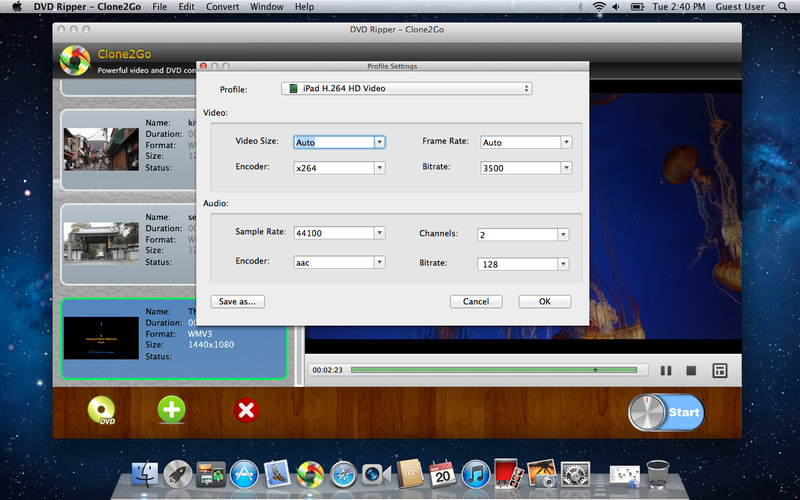
DVD Ripper has a simple interface which makes it a doddle to convert a DVD. There are lots of built-in presets which are already setup for the target device you want to play on (for example, the iPad, iPhone 3GS, iPod Touch, Apple TV, and all manner of other multimedia devices). There are also options to manually tweak the output formats and bit-rates (i.e. the quality of the video) and a choice of multimedia formats (such as H.264 and MPEG-4 video, AAC and MP3 audio) to get the optimal settings. For example, you might want to use a higher quality setting if you feel that the presets aren't good enough. DVD Ripper is also one of the cheaper DVD ripping apps. Once you've copied and converted a DVD, you'll have to import it into iTunes (more on that later).
Copy Your Movie onto the iPad
Once you've managed to convert a DVD to a file in the correct format for iOS, the next step is simply to import the movie into iTunes and perform a sync with the iPad.
From the iTunes File menu, select Add to Library or just hit COMMAND + O and select the movie you want to import. Once that's done, it should appear in the Films section of iTunes. Now, just sync with your iPad in the usual way, and the movie should be there and ready to play!

This article describes the basics of how to watch movies on your iPad.
Introduction
The general process of getting a movie onto your iPad is:
- Insert a DVD movie into your Mac
- Download a video conversion application
- Encode and copy the video to your computer
- Import the movie into iTunes
- Synchronise iTunes with your iPad
There are numerous apps that can help you with the conversion process from DVD to iOS. Some of these apps are relatively complicated, but there are many dedicated apps in the App Store with straightforward settings and simple interfaces. Note that many such apps refuse to convert copy-protected DVD's, but there are usually upgrades or patches available which can get around these limitations. Please be aware of copyright laws and make sure that you don't infringe anybody's copyright!
By far the best option is to obtain some software which can copy the DVD and convert to the correct audio and video formats for iOS, rather than more traditional conversion which is limited to files (i.e. not discs) – in that case, you'll need a separate app to copy the movie files off the DVD to your Mac and another to convert them to the correct multimedia format to play on the iPad.
Apps to Convert DVD's For The iPad
Clone2Go DVD Ripper is one of the best applications available in the App Store to copy (sometimes called "rip") DVD's to your computer. If you don't want to shell out any cash then you can also use a combination of VLC Player and Handbrake to achieve the same results, but you might need a little more technical know-how. The benefit of the Clone2Go DVD Ripper app is that it has inbuilt presets to convert the video to the correct format with simple drag-and-drop interfaces, and everything can be done in one program.
Convert DVD's to iPad with Clone2Go DVD Ripper
Website: App Store, Clone2Go
DVD Ripper has a simple interface which makes it a doddle to convert a DVD. There are lots of built-in presets which are already setup for the target device you want to play on (for example, the iPad, iPhone 3GS, iPod Touch, Apple TV, and all manner of other multimedia devices). There are also options to manually tweak the output formats and bit-rates (i.e. the quality of the video) and a choice of multimedia formats (such as H.264 and MPEG-4 video, AAC and MP3 audio) to get the optimal settings. For example, you might want to use a higher quality setting if you feel that the presets aren't good enough. DVD Ripper is also one of the cheaper DVD ripping apps. Once you've copied and converted a DVD, you'll have to import it into iTunes (more on that later).
Copy Your Movie onto the iPad
Once you've managed to convert a DVD to a file in the correct format for iOS, the next step is simply to import the movie into iTunes and perform a sync with the iPad.
From the iTunes File menu, select Add to Library or just hit COMMAND + O and select the movie you want to import. Once that's done, it should appear in the Films section of iTunes. Now, just sync with your iPad in the usual way, and the movie should be there and ready to play!
Thursday, June 14, 2012
Subscribe to:
Posts (Atom)