Showing posts with label convert dvd to ipad. Show all posts

Tuesday, June 19, 2012

How to Watch DVD's on the iPad

If you have an extensive collection of DVD's lying around, you might be wondering how you can watch them all on your iPad or iPhone. There's nothing quite like watching a movie whilst travelling or when away from home, and the experience can be even better than playing a physical DVD because movies start instantly on iOS. The iPad is an especially good video playback device due to the large screen size and hi-resolution display. HD (1080p or 720p) movies play brilliantly, and it's possible to transfer quite a number of films to the iPad – depending upon the storage capacity you have available.

This article describes the basics of how to watch movies on your iPad.

Introduction

The general process of getting a movie onto your iPad is:

  • Insert a DVD movie into your Mac
  • Download a video conversion application
  • Encode and copy the video to your computer
  • Import the movie into iTunes
  • Synchronise iTunes with your iPad

There are numerous apps that can help you with the conversion process from DVD to iOS. Some of these apps are relatively complicated, but there are many dedicated apps in the App Store with straightforward settings and simple interfaces. Note that many such apps refuse to convert copy-protected DVD's, but there are usually upgrades or patches available which can get around these limitations. Please be aware of copyright laws and make sure that you don't infringe anybody's copyright!

By far the best option is to obtain some software which can copy the DVD and convert to the correct audio and video formats for iOS, rather than more traditional conversion which is limited to files (i.e. not discs) – in that case, you'll need a separate app to copy the movie files off the DVD to your Mac and another to convert them to the correct multimedia format to play on the iPad.

Apps to Convert DVD's For The iPad

Clone2Go DVD Ripper is one of the best applications available in the App Store to copy (sometimes called "rip") DVD's to your computer. If you don't want to shell out any cash then you can also use a combination of VLC Player and Handbrake to achieve the same results, but you might need a little more technical know-how. The benefit of the Clone2Go DVD Ripper app is that it has inbuilt presets to convert the video to the correct format with simple drag-and-drop interfaces, and everything can be done in one program.

Convert DVD's to iPad with Clone2Go DVD Ripper

Website: App Store, Clone2Go

DVD Ripper has a simple interface which makes it a doddle to convert a DVD. There are lots of built-in presets which are already setup for the target device you want to play on (for example, the iPad, iPhone 3GS, iPod Touch, Apple TV, and all manner of other multimedia devices). There are also options to manually tweak the output formats and bit-rates (i.e. the quality of the video) and a choice of multimedia formats (such as H.264 and MPEG-4 video, AAC and MP3 audio) to get the optimal settings. For example, you might want to use a higher quality setting if you feel that the presets aren't good enough. DVD Ripper is also one of the cheaper DVD ripping apps. Once you've copied and converted a DVD, you'll have to import it into iTunes (more on that later).
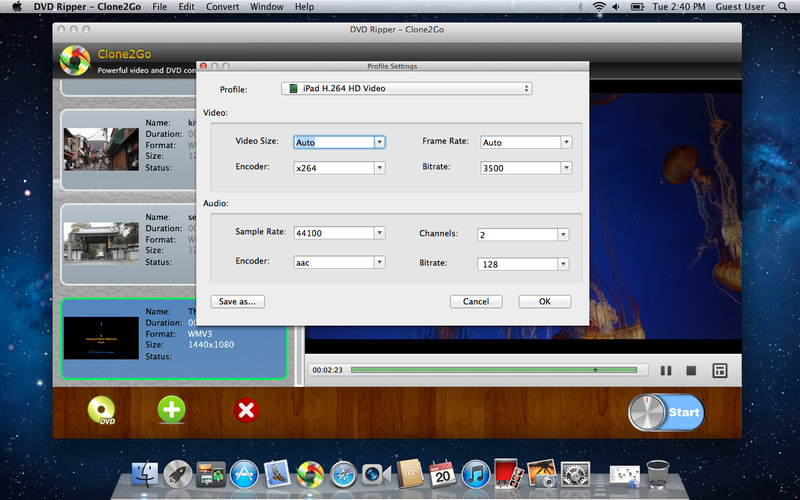
Clone2Go DVD Ripper app

Copy Your Movie onto the iPad

Once you've managed to convert a DVD to a file in the correct format for iOS, the next step is simply to import the movie into iTunes and perform a sync with the iPad.

From the iTunes File menu, select Add to Library or just hit COMMAND + O and select the movie you want to import. Once that's done, it should appear in the Films section of iTunes. Now, just sync with your iPad in the usual way, and the movie should be there and ready to play!

sync DVD movies to iPad


Monday, July 25, 2011

How to Transfer DVD Movies to iPad

The iPad is the first tablet computer developed by Apple Inc. It is part of a device category between a smartphone and a laptop computer. In the following guide, I'd like to show you how to convert DVD movies to iPad compatible video files and transfer DVD movies to iPad.

To begin with you need to know the video formats the Apple iPad can play.

The Video Formats Supported by Apple iPad Include

H.264 video up to 720p, 30 frames per second, Main Profile level 3.1 with AAC-LC audio up to 160 Kbps, 48kHz, stereo audio in .m4v, .mp4, and .mov file formats; MPEG-4 video, up to 2.5 Mbps, 640 by 480 pixels, 30 frames per second, Simple Profile with AAC-LC audio up to 160 Kbps, 48kHz, stereo audio in .m4v, .mp4, and .mov file formats; Motion JPEG (M-JPEG) up to 35 Mbps, 1280 by 720 pixels, 30 frames per second, audio in ulaw, PCM stereo audio in .avi file format

Now to transfer the DVD movies, what you need to do is simply rip the DVD movies into a video format supported by iPad. After you have the files in a compatible format upload them into your iPad through the sync of iTunes library.

To convert DVD movies to iPad video files you need to download the Clone2Go DVD to iPad Converter.

So are you all set? Let's start the process now.

Step 1

First open the DVD to iPad Converter.

Add DVD files.

If the DVD movie you need to convert is on your disc drive, click on the Open DVD button.

In case you have saved it in a hard drive, click the Add Video button and locate the folder.

Locate the path of the folders VIDEO_TS and AUDIO_TS. Select the .vob files and click OK.

transfer DVD movies to iPad

Once the DVD has been been imported you can watch it on the main interface.

Here's your chance to pick the DVD you wish to play on your iPad. Select the portion you want to play. Drag from the Start to trim and Stop to trim button to select the segment.

Step 2

To choose the proper profile look for the drop-down list of Profile option on the right. Choose the profile that suits you best. Like for instance if you want to play the video in MPEG-4 choose the iPad MPEG-4 Video from the list of profiles.

transfer DVD movies to iPad

Step 3

Click on the Start Encode button to start ripping DVD's for iPad.

Step 4

After the ripping is complete, go to the Folder button on the main menu to get the converted video files.

You are done. Now upload them into your iPad through the sync of iTunes library and start playing.